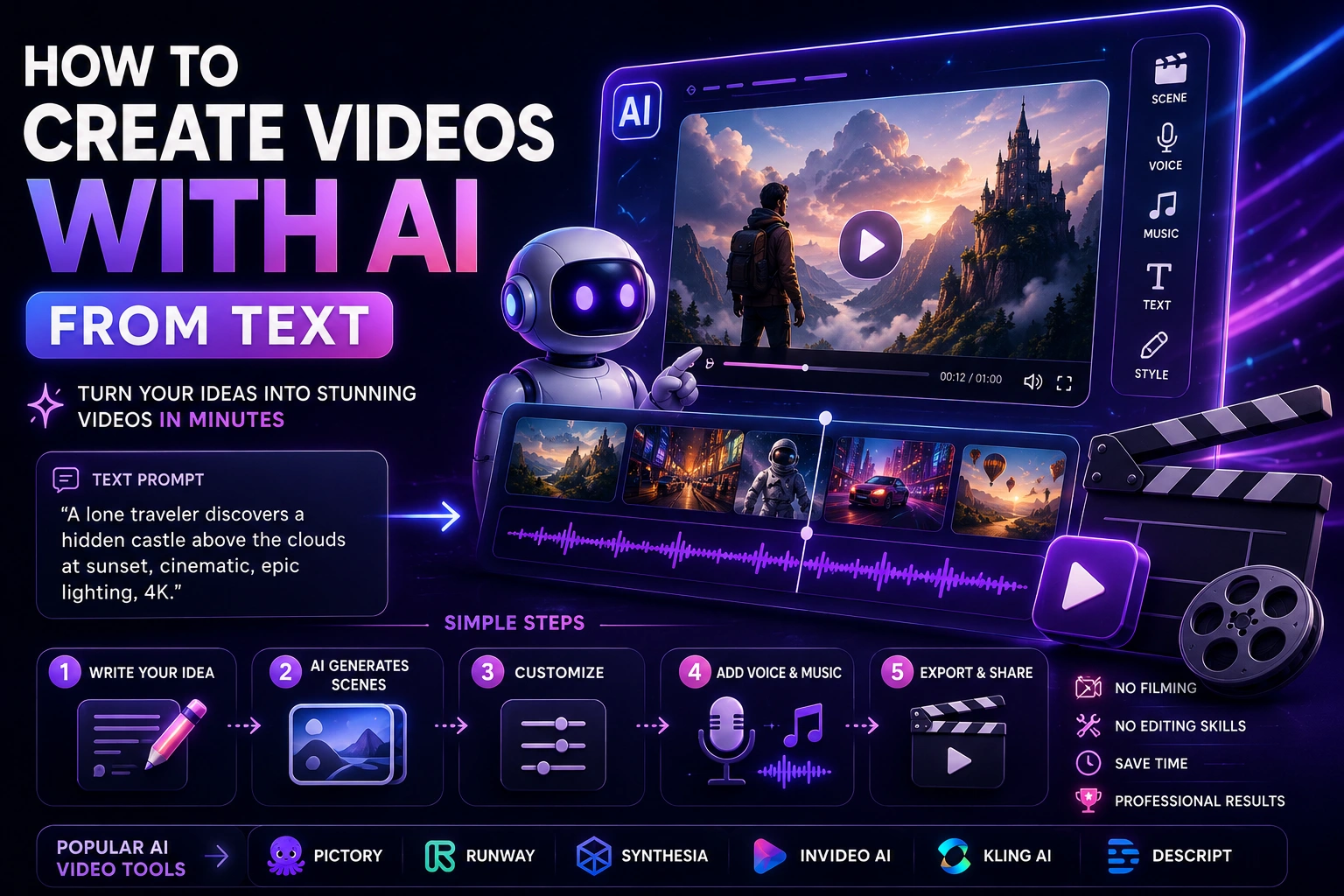

Creating a video traditionally can require a camera, actors, locations, equipment, editing software, and many hours of work. Text-to-video AI is changing that workflow by allowing you to describe a scene in natural language and generate a video from your description.
Modern AI video generators can create short cinematic scenes, product demonstrations, animated concepts, social media clips, backgrounds, and other visual content from text prompts. Some systems can also generate audio or provide tools for continuing and editing generated clips.
In this guide, we'll explain how to create videos with AI from text, how to write effective prompts, how to improve generated results, and how to turn several AI-generated clips into a complete video.
What Is Text-to-Video AI?
Text-to-video AI is a type of generative AI that transforms a written description into a video clip.
Instead of recording a scene manually, you describe what you want the viewer to see and how the scene should move.
For example, you could write:
A cinematic shot of a futuristic city at sunset, flying vehicles moving between skyscrapers, warm golden light, realistic atmosphere, slow camera movement.
The AI model interprets the description and generates a video based on the visual and motion instructions in the prompt.
Current text-to-video systems such as Google Veo and Runway support generating video from written prompts, although their features, output lengths, resolutions, and workflows differ. Google's current Veo 3.1 documentation also describes portrait 9:16 generation, while Runway's current documentation explains text-to-video prompting and iterative generation.
How Does AI Create a Video From Text?
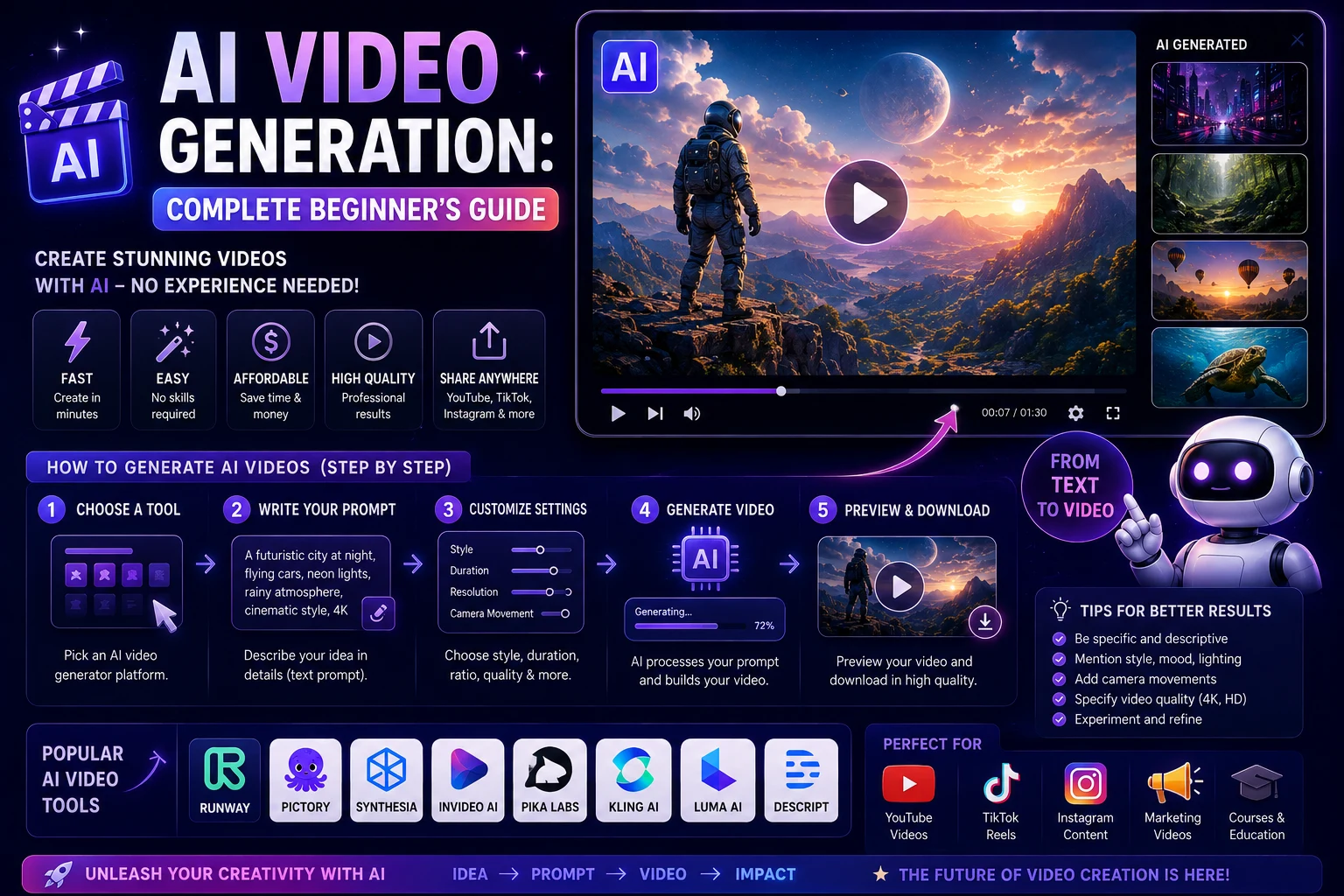
At a high level, the process is straightforward from the user's perspective.
- You write a description of the scene.
- The AI interprets the subject, environment, action, camera, and style.
- The model generates a short video based on the prompt.
- You review the result.
- You improve the prompt or generate another version.
- You combine the best clips in a video editor.
The important point is that the first generation does not always need to be perfect. AI video creation is usually an iterative process: generate, review, adjust, and generate again.
What Do You Need to Create an AI Video From Text?
You don't need professional filming equipment to get started.
A basic workflow requires:
- An AI video generation tool
- A clear idea for your video
- A text prompt describing the scene
- A video editor for combining clips
- Optional voiceover or music
If you're creating a short social-media video, you can generate several short clips and assemble them into a longer Reel, Short, or TikTok-style video.
Best AI Tools for Creating Videos From Text
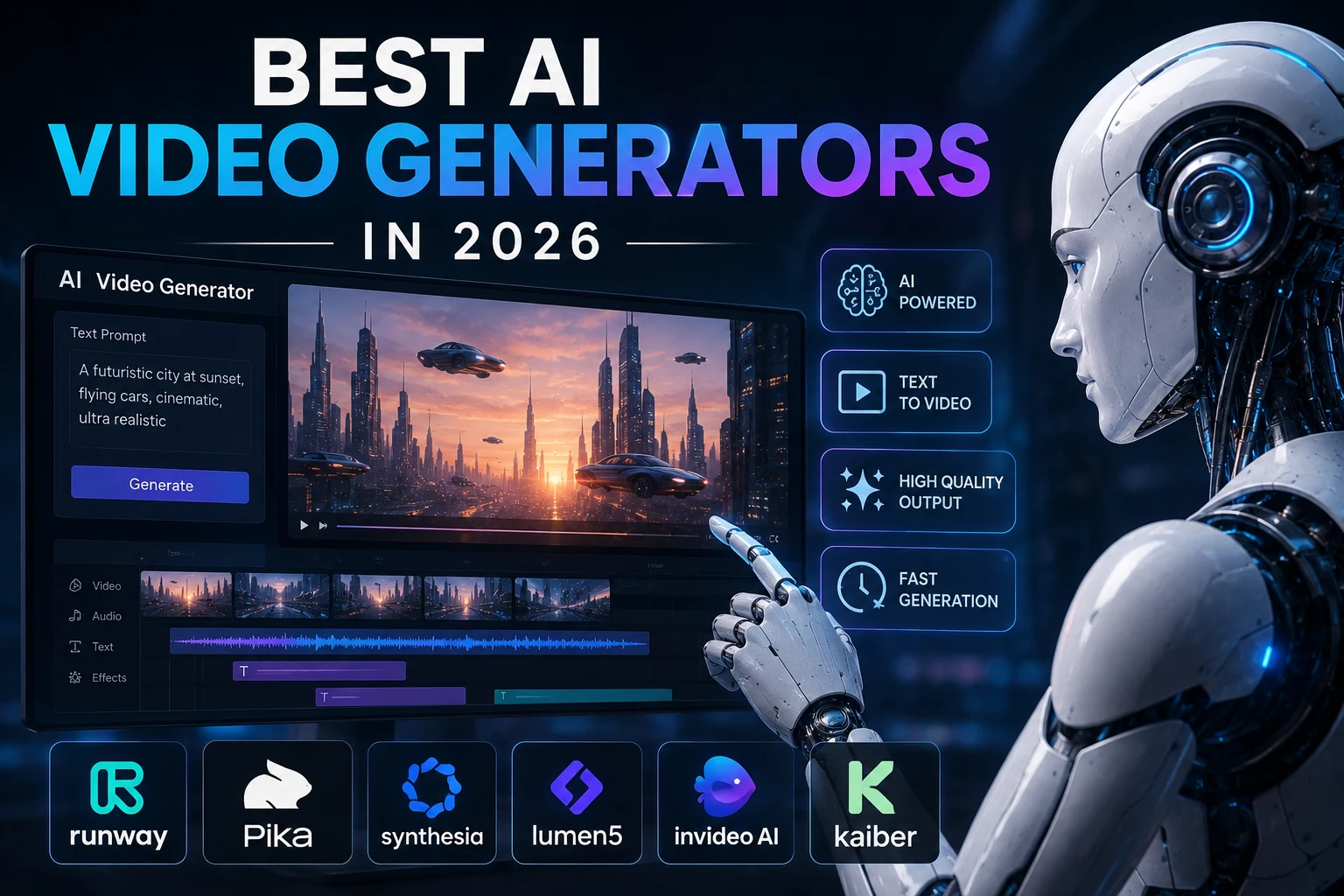
Several AI video platforms can be used for text-to-video generation. The best option depends on whether you care most about realism, creative control, audio, speed, or editing.
- Google Veo — Strong option for realistic cinematic generation and native audio
- Runway — Strong option for creative control and professional workflows
- Kling AI — Useful for realistic motion and cinematic scenes
- Pika — Useful for creative short-form effects
- Luma AI — Useful for creative visual generation and animation
The AI video market changes quickly, so model names, features, pricing, and availability can change. Always check the provider's current documentation before choosing a tool for an important production workflow.
Step 1: Decide What You Want to Create
Before opening an AI video generator, decide what the final video should accomplish.
For example, you might want to create:
- An Instagram Reel
- A YouTube Short
- A product advertisement
- A cinematic scene
- A storytelling video
- A travel video
- An educational video
- A background video
- A product demonstration
- A concept video
Knowing the purpose of the video helps you choose the right aspect ratio, visual style, duration, and editing approach.
Step 2: Choose the Video Format
Think about where the video will be published before generating it.
For Instagram Reels, TikTok, and YouTube Shorts, a vertical 9:16 composition is usually the most appropriate choice.
For traditional YouTube videos and many desktop presentations, 16:9 may be more appropriate.
Some current AI video systems support portrait generation directly. Google's Veo 3.1 documentation, for example, lists both landscape 16:9 and portrait 9:16 output options.
Step 3: Write Your First Prompt
The prompt is one of the most important parts of text-to-video generation.
A useful prompt should tell the AI what appears in the scene and what happens during the shot.
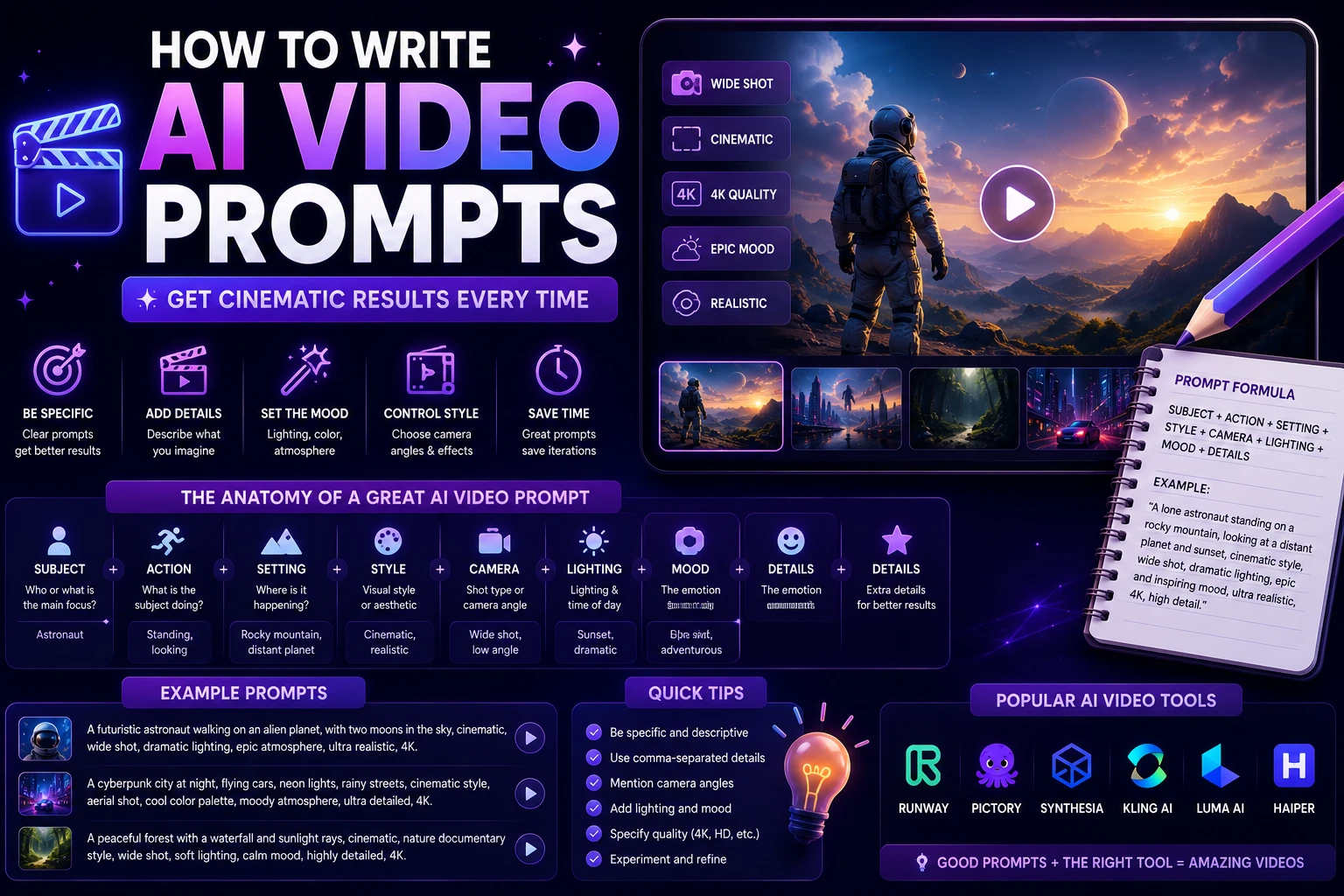
A simple structure is:
Camera shot of [subject] [action] in [environment]. [Lighting]. [Visual style]. [Camera movement].
For example:
Medium tracking shot of a young woman walking through a modern city street at night. Neon lights reflect on wet pavement as pedestrians move in the background. Cinematic lighting, realistic photography, shallow depth of field, slow camera movement.
Runway's current text-to-video prompting guidance similarly recommends describing both visual elements and motion elements, including the subject, environment, action, camera movement, lighting, composition, and style.
Step 4: Describe the Subject
Start by explaining what the viewer should see.
The subject could be:
- A person
- An animal
- A vehicle
- A product
- A building
- A landscape
- A fictional character
Instead of writing:
A car.
Try:
A sleek black electric sports car with a futuristic design.
Specific descriptions give the model more information about the visual concept you want.
Step 5: Describe the Action
Video is about movement, so don't describe only what the scene looks like. Explain what is happening.
For example:
- A woman walks toward the camera.
- A sports car drives through a tunnel.
- A dog runs across a beach.
- A drone flies over a mountain.
- A product rotates slowly on a table.
Adding clear movement instructions can make a text-to-video prompt much more useful.
Step 6: Describe the Camera
Camera instructions can help shape the way the generated scene feels.
You can describe:
- Close-up shot
- Medium shot
- Wide shot
- Aerial shot
- Tracking shot
- Pan
- Tilt
- Slow zoom
- Handheld camera
For example:
Slow tracking shot following the subject from behind.
Or:
Wide aerial shot slowly moving above the city.
Camera movement is especially useful when you want the generated video to feel more cinematic.
Step 7: Add Lighting and Visual Style
Lighting and style can significantly change the appearance of a generated scene.
You can use descriptions such as:
- Soft natural lighting
- Golden-hour lighting
- Dramatic cinematic lighting
- Neon lighting
- Low-key lighting
- Studio lighting
- Photorealistic
- Cinematic
- Documentary style
- Animated style
For example:
Warm golden-hour lighting, realistic cinematic photography, subtle lens flare, natural colors.
Step 8: Generate the Video
Once your prompt is ready, enter it into the AI video generator and start the generation process.
Depending on the platform and model, generation may take some time. The resulting clip is usually short, which makes it useful to think of each generation as a scene or shot rather than an entire movie.
For example, Runway's current workflow lets users select a generation mode, enter a prompt, generate a clip, and then iterate on the result by adjusting the prompt or continuing with additional tools.
Step 9: Review the Result
Don't immediately assume that the first generation is the final version.
Look for:
- Incorrect objects
- Unnatural movement
- Unwanted background elements
- Inconsistent characters
- Incorrect camera movement
- Visual artifacts
- Problems with hands or faces
- Unwanted text or symbols
If something is wrong, modify the prompt and generate another version.
Step 10: Improve the Prompt
Prompt iteration is a normal part of AI video creation.
Suppose your first prompt produces a city scene, but the camera doesn't move as expected.
Instead of completely rewriting the prompt, reinforce the specific instruction:
Slow forward tracking camera moving continuously toward the subject.
Runway's prompting guidance recommends iterating when a visual or motion component is missing from the first generation.
Step 11: Generate Multiple Clips
A complete video doesn't have to come from one generation.
In fact, creating several short clips can give you more creative control.
For example, a 30-second video could contain:
- Opening shot
- Introduction shot
- Main action shot
- Close-up shot
- Final shot
Generate each scene separately and then combine the strongest results in an editor.
Step 12: Edit the AI-Generated Clips
After generating your clips, move them into a video editor.
You can then:
- Trim clips
- Rearrange scenes
- Add transitions
- Add captions
- Add voiceover
- Add music
- Adjust volume
- Correct colors
- Add a logo
- Add an intro or outro
AI generation creates the raw visual material. Editing turns those individual clips into a coherent video.
How to Create an AI Video From a Simple Idea
Let's use a simple example.
Suppose your idea is:
A futuristic city.
That is too vague for a controlled video.
You could expand it into:
Wide cinematic shot of a futuristic city at sunset, towering glass skyscrapers surrounded by elevated roads, flying vehicles moving between buildings, pedestrians walking through a modern plaza, warm orange sunlight, realistic reflections, atmospheric haze, slow aerial camera movement, photorealistic cinematic style.
The second prompt gives the model much more information about the scene, movement, camera, lighting, and style.
Text-to-Video Prompt Template
You can use this simple template for your own projects:
[Camera shot] of [subject] [action] in [environment]. [Important visual details]. [Lighting]. [Camera movement]. [Visual style].
For example:
Close-up shot of a professional chef preparing a colorful dish in a modern restaurant kitchen. Steam rises from the pan while the chef moves quickly and confidently. Warm cinematic lighting, shallow depth of field, realistic food photography, smooth handheld camera movement.
How to Create Better AI Video Prompts
Be Specific About Movement
A video prompt should explain what moves and how it moves.
Instead of:
A bird in the sky.
Try:
A golden eagle glides slowly across the sky while the camera follows from behind, its wings moving naturally in the wind.
Don't Add Too Many Conflicting Instructions
More detail isn't always better.
A prompt containing too many unrelated requirements can make the result less predictable.
Start with the most important elements and add details gradually.
Runway's current guidance similarly recommends focusing on clarity rather than simply making prompts longer.
Use Natural Language
Natural-language descriptions can provide useful context.
Instead of writing a long list of disconnected keywords, describe the scene as if you were explaining it to a filmmaker.
Think Like a Director
Before writing your prompt, imagine the shot.
Ask yourself:
- What does the viewer see first?
- What is the subject doing?
- Where is the camera?
- How does the camera move?
- What changes during the shot?
- What should the lighting look like?
This approach can help you create more intentional video prompts.
Text-to-Video vs Image-to-Video
AI video tools commonly provide two related workflows: text-to-video and image-to-video.
Text-to-Video
Text-to-video starts with a written description and generates a new scene from that description.
It is useful when you want to create a completely new visual concept without first creating an image.
Image-to-Video
Image-to-video starts with a still image and animates it.
This can be useful when you already have a specific character, product, illustration, or composition that you want to preserve while adding movement.
Runway's current documentation distinguishes these workflows and notes that text-to-video is useful when exact starting-scene consistency is not the priority, while image-to-video can use an image as the basis for animation.
How to Create AI Videos for Instagram Reels
AI-generated video works particularly well for short-form social content because individual AI generations can be combined into fast-paced sequences.
A simple workflow is:
- Choose a Reel topic.
- Write a short script.
- Break the script into scenes.
- Create a prompt for each scene.
- Generate several versions of each scene.
- Select the best clips.
- Add captions and voiceover.
- Edit the video in a vertical 9:16 format.
- Export and publish.
This approach is often more reliable than asking an AI model to generate an entire long video from one enormous prompt.
How to Create AI Videos for YouTube
For YouTube, you can use the same scene-based approach but create more clips and combine them into a longer narrative.
For example, a tutorial could contain:
- Intro
- Problem explanation
- Visual example
- Step-by-step scenes
- Demonstration
- Conclusion
AI-generated visuals can also be combined with screen recordings, real footage, voiceovers, graphics, and stock footage.
Can AI Generate Video With Sound?
Some current AI video systems can generate audio alongside video.
Google's Veo 3.1 documentation describes native audio generation, including video with dialogue, music, and sound effects.
However, audio capabilities differ between platforms and models. If your chosen generator does not produce the audio you need, you can add narration, music, and sound effects during editing.
Are AI-Generated Videos Free?
Some AI video platforms offer free credits, trials, or limited free generation, while advanced models and higher usage generally require payment.
Pricing and usage limits change frequently, so check the current provider's pricing before choosing a tool for regular production.
When comparing plans, look beyond the monthly price. Consider generation credits, resolution, video duration, watermarks, available models, commercial rights, and the number of usable clips you can realistically produce.
Can AI-Generated Videos Be Used Commercially?
Commercial use depends on the specific AI provider, model, subscription plan, and content involved.
If you're creating advertisements, client projects, monetized YouTube videos, or business content, review the provider's current licensing and commercial-use terms before publishing.
You should also consider rights related to trademarks, real people, copyrighted characters, music, voices, and other elements included in the final video.
Common Mistakes When Creating AI Videos From Text
1. Using Extremely Vague Prompts
A vague prompt gives the model too much freedom.
Describe the most important visual and motion elements instead.
2. Forgetting Camera Movement
If camera movement matters, include it in the prompt.
3. Trying to Generate Everything in One Clip
Breaking a video into multiple scenes often gives you more control over storytelling and editing.
4. Making Prompts Too Complicated
Too many conflicting instructions can make the generation less predictable. Start simple and refine the prompt through multiple attempts.
5. Publishing the First Generation Without Reviewing It
Always inspect the result for visual errors, unnatural motion, incorrect details, and other problems before using it in a final project.
Best AI Video Workflow for Beginners
If you're completely new to AI video generation, don't try to create a ten-minute film on your first attempt.
Start with a short project.
A good beginner workflow is:
- Choose one simple idea.
- Write a one-sentence scene description.
- Add the subject and action.
- Add a camera instruction.
- Add lighting and style.
- Generate the clip.
- Review the result.
- Improve the prompt.
- Generate another version.
- Edit the best result.
Once you're comfortable with short clips, you can move on to multi-scene videos and more complex projects.
Final Verdict
Creating videos with AI from text has become much easier. Instead of starting with a camera and a complete production setup, you can begin with an idea and turn that idea into short generated scenes using natural-language prompts.
The key to getting better results is not simply writing longer prompts. Describe the important visual elements, explain the action, specify useful camera movement, and provide enough information about lighting and style to communicate your creative intent.
The most effective workflow is usually iterative: generate a scene, review it, improve the prompt, and generate another version. Once you have several good clips, combine them with editing, narration, captions, music, and other elements.
AI video generators can dramatically accelerate video production, but human creative direction and editing still play an important role. The best results come from treating AI as a creative production tool rather than expecting one prompt to create a perfect finished video every time.
Frequently Asked Questions
Can I create a video from text with AI?
Yes. Text-to-video AI tools can transform written descriptions into short video clips. You can describe the subject, environment, action, camera movement, lighting, and visual style.
What is the best AI tool for creating videos from text?
The best tool depends on your needs. Google Veo is a strong option for cinematic generation and native audio, while Runway is useful for creators who want more control over generation and editing. Kling and other platforms can also be useful depending on the type of video you want to create.
How long can an AI-generated video be?
Generation length varies by model and platform. Many systems create relatively short clips that can then be combined into longer videos during editing.
Can I create an AI video without filming anything?
Yes. Text-to-video generation can create visual scenes without a camera or recorded footage. You can also combine generated clips with other digital assets during editing.
How do I make AI-generated videos look realistic?
Use clear descriptions of the subject, environment, lighting, camera movement, and visual style. Generate multiple versions and refine the prompt based on what the model gets wrong.
Can AI generate vertical videos for Instagram?
Yes. Some current AI video systems support portrait 9:16 generation, which is useful for Instagram Reels, TikTok, and YouTube Shorts.
Should I generate one long AI video or several short clips?
For many projects, generating several short scenes provides more control over pacing, composition, and editing. You can then combine the strongest clips into a complete video.
Can I monetize AI-generated videos?
Potentially, but monetization depends on the platform where you publish, the originality of your content, and the licensing terms of the AI tools and media you use. Always review the current terms before publishing commercial content.