
Google Gemini is an AI assistant that can help you write, brainstorm, learn, summarize information, analyze files and images, and complete many everyday tasks. If you are new to AI tools, Gemini is a good place to start because you can interact with it using natural language.
In this beginner's guide, you'll learn how to use Google Gemini step by step, how to write better prompts, how to upload files and images, and how to get more useful answers.
What Is Google Gemini?
Google Gemini is Google's family of generative AI models and the name of its AI assistant. Gemini Apps allow users to communicate with AI through text and, depending on the device and available features, voice, images, files and other inputs.
You can use Gemini for tasks such as brainstorming ideas, creating drafts, learning about unfamiliar topics, summarizing information and working with uploaded files. Google also provides Gemini through web and mobile experiences.
Some Gemini features can be used without signing in, while additional features and activity-saving capabilities require a Google Account. Availability can vary by country, language, account type and device.
How to Access Google Gemini
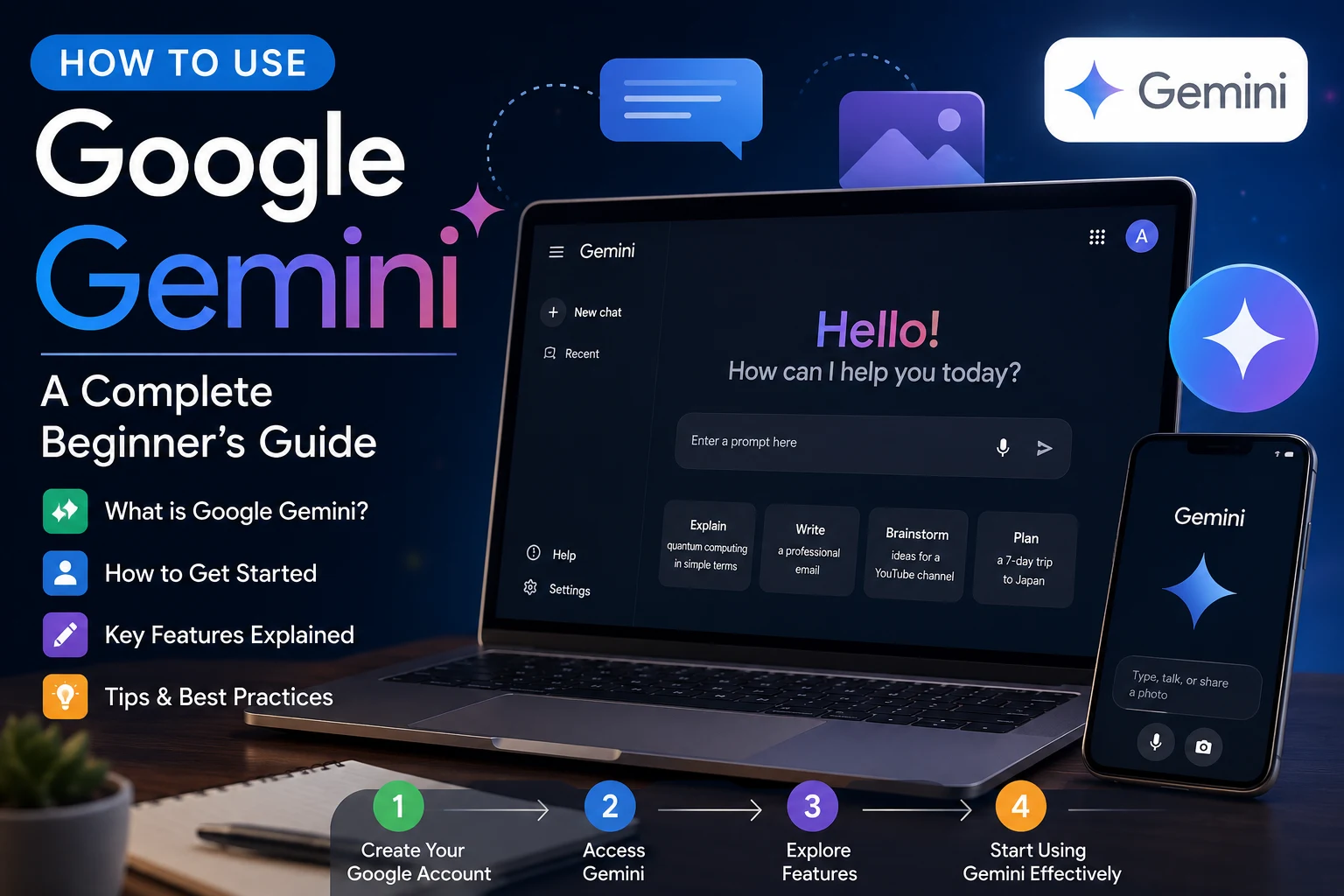
The easiest way to get started is through the Gemini web app.
- Open your web browser.
- Go to gemini.google.com.
- Sign in with your Google Account if required.
- Enter your question or request in the prompt box.
- Submit your prompt and wait for Gemini to generate a response.
Google currently supports Gemini on common browsers including Chrome, Safari, Firefox, Opera and Microsoft Edge.
How to Start Your First Gemini Chat
Using Gemini is similar to having a conversation with an AI assistant. Instead of searching for individual keywords, describe what you want in a complete request.
For example, instead of typing:
AI marketing
You could ask:
"Explain five practical ways a small business can use AI for marketing. Give me simple examples for each one."
The second prompt gives Gemini more context and a clearer goal, which generally makes it easier to produce a useful response.
How to Write Better Gemini Prompts
The quality of your prompt can have a major impact on the usefulness of the response. A good prompt tells Gemini what you want and provides enough context to understand your goal.
1. Be Specific
Tell Gemini exactly what you need.
Instead of:
"Write about AI."
Try:
"Explain artificial intelligence to a complete beginner in 500 words using simple English and three real-world examples."
2. Give Gemini Context
Explain who you are and what you are trying to accomplish.
For example:
"I run a small technology blog for beginners. Give me 10 article ideas about AI that have practical search intent."
3. Specify the Format
You can ask Gemini to organize its response as a list, table, outline, email, tutorial or another format.
For example:
"Compare Google Gemini and ChatGPT in a simple table covering features, ease of use, writing, coding and research."
4. Ask for a Specific Tone
You can also describe the tone you want.
For example:
"Rewrite this paragraph in a professional but friendly tone that is easy for beginners to understand."
How to Use Gemini for Writing
Gemini can help with many writing tasks, including brainstorming, outlining and creating first drafts. Google specifically lists writing and creating first drafts among the ways Gemini Apps can assist users.
You can use it to:
- Generate article ideas
- Create blog outlines
- Rewrite paragraphs
- Improve grammar and clarity
- Write professional emails
- Create social media ideas
- Summarize long text
For example, you could ask:
"Write a professional email asking a client for an update on an overdue project. Keep it polite and concise."
How to Use Gemini for Learning
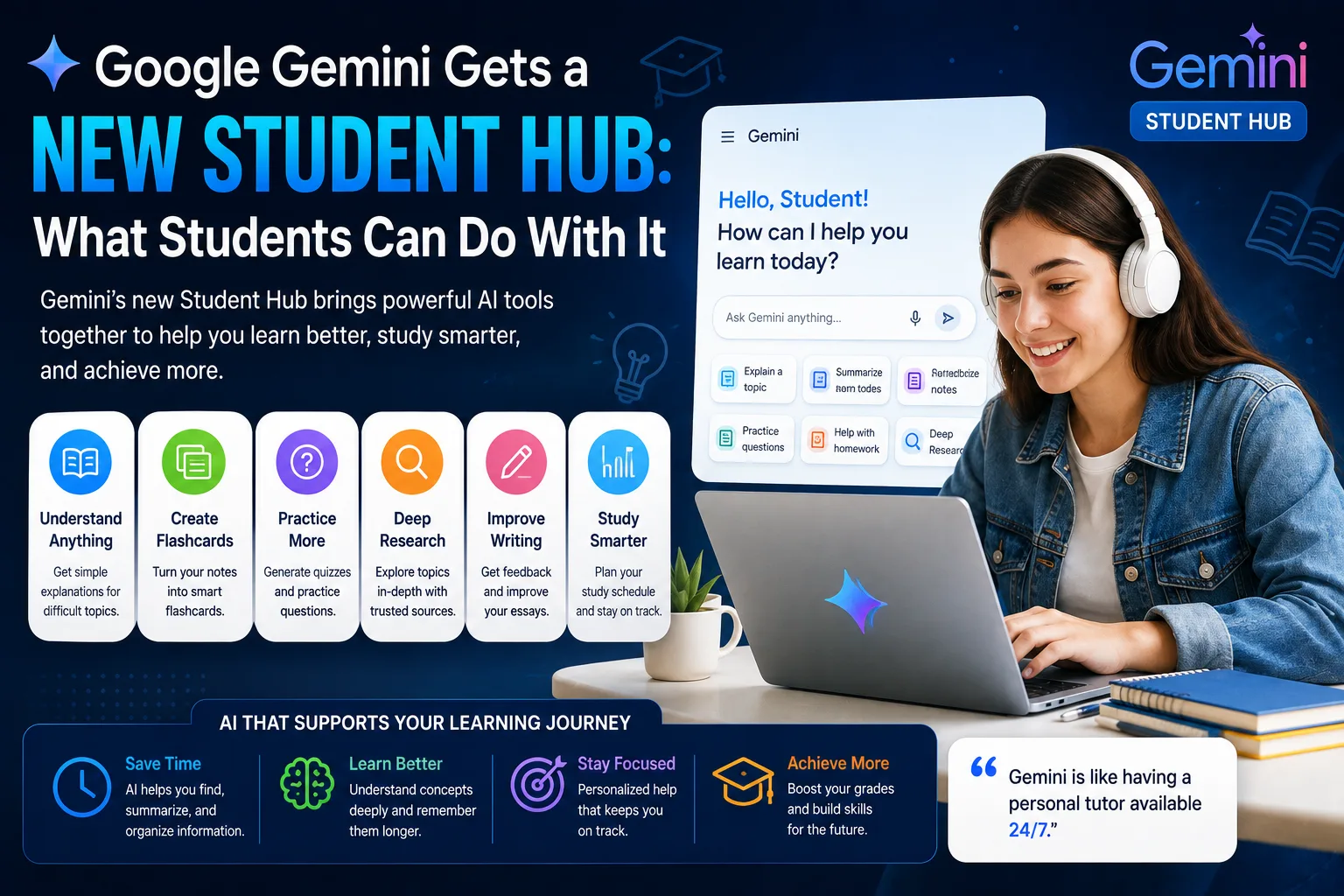
Gemini can also act as a study assistant. You can ask it to explain difficult concepts, create practice questions, summarize material or teach a subject step by step.
Try prompts such as:
- "Explain photosynthesis like I'm 12 years old."
- "Teach me the basics of Python in seven days."
- "Create 20 English vocabulary questions for a B1 learner."
- "Explain this historical event in simple language."
For important academic information, verify facts using reliable sources rather than treating an AI response as automatically correct.
How to Upload Files to Gemini
Gemini can accept files and images as part of prompts, depending on the available features and account. On the web version, Google says users can click the option to add files or images and then follow the on-screen instructions.
This can be useful when you want Gemini to:
- Summarize a document
- Analyze information in a file
- Explain an image
- Review written content
- Answer questions about uploaded material
For example:
"Summarize this document into five key points and then give me three questions I should ask about it."
How to Use Gemini With Images
Depending on the available Gemini features, you can provide an image and ask questions about it. This makes Gemini useful for visual analysis, learning and everyday problem-solving.
For example, you might upload a chart and ask:
"Explain what this chart shows and identify the three most important trends."
You can also use a photo as part of a question, although you should always review AI-generated interpretations carefully because AI systems can make mistakes.
How to Use Gemini on Your Phone
Gemini is also available through mobile experiences on supported devices and in supported countries and languages. On mobile, users can interact with Gemini using text and, depending on availability, voice, photos and the camera.
To get started, install or open the Gemini app on a supported device, sign in when required, and enter your request.
How to Get Better Results From Gemini
If your first response isn't useful, don't immediately start a completely new conversation. Instead, refine your request.
You can say:
- "Make this explanation simpler."
- "Give me more examples."
- "Explain point number three in more detail."
- "Rewrite this for beginners."
- "Turn this into a step-by-step tutorial."
- "Give me a shorter version."
This conversational approach lets you progressively improve the result.
What Are Gemini Gems?
Gems are customized versions of Gemini designed to help with specific and repeatable tasks. You can provide instructions that describe how you want Gemini to behave and reuse that setup for similar tasks.
For example, you could create a Gem for:
- Writing blog posts
- Learning a language
- Studying for exams
- Brainstorming business ideas
- Analyzing documents
Google's current documentation says custom Gems can be created and edited in the Gemini web app, while Gems can also be used through supported mobile experiences.
Useful Gemini Prompts for Beginners
Here are some simple prompts you can try:
- "Explain artificial intelligence in simple terms."
- "Give me 10 ideas for a technology blog."
- "Summarize this text into five bullet points."
- "Help me write a professional email."
- "Create a one-week study plan for learning English."
- "Explain this topic step by step."
- "Give me three examples to help me understand this concept."
- "Rewrite this paragraph so it sounds more professional."
Things to Keep in Mind When Using Gemini
AI assistants can produce incorrect or misleading information. Google explicitly warns that Gemini can make mistakes and recommends checking responses, particularly when the information is important.
For medical, legal, financial or other professional decisions, don't rely solely on an AI-generated response. Verify important information with qualified professionals and trustworthy sources.
You should also avoid sharing sensitive personal information unless you understand how the service handles your data and you are comfortable with the relevant privacy settings.
Google Gemini vs Traditional Search
Traditional search engines are designed primarily to help you find webpages and other sources. Gemini is designed to interact conversationally and generate responses based on your requests.
In practice, you can use both together. Gemini can help you understand or organize a topic, while reliable external sources can help you verify important facts and explore the original information.
Final Thoughts
Google Gemini is a powerful AI assistant that can help beginners with writing, learning, brainstorming, research, file analysis and many everyday tasks. Getting started is simple: open Gemini, describe what you need, review the response and refine your prompt when necessary.
The most important skill isn't simply knowing where to find Gemini. It's learning how to give clear instructions and critically evaluate the answers you receive.
Start with simple prompts, experiment with different formats, and gradually build more detailed instructions as you become comfortable with the tool.
Frequently Asked Questions
Is Google Gemini free?
Some Gemini features can be used without signing in, while additional features and capabilities may require a Google Account or depend on the user's plan and region. Availability can change over time.
Do I need a Google Account to use Gemini?
Not necessarily for every feature. Google states that some Gemini Apps features can be used without signing in, while additional features and saving activity require signing in with a Google Account.
Can Gemini analyze files?
Yes. Gemini supports adding files or images to prompts in supported experiences, allowing you to ask questions about the provided material.
Can I use Gemini on my phone?
Yes. Gemini has mobile experiences for supported devices, languages and countries. Depending on availability, you can interact with Gemini using text, voice, photos and your camera.
Can Gemini make mistakes?
Yes. Google warns that Gemini can produce inaccurate information, so important responses should be checked against reliable sources.