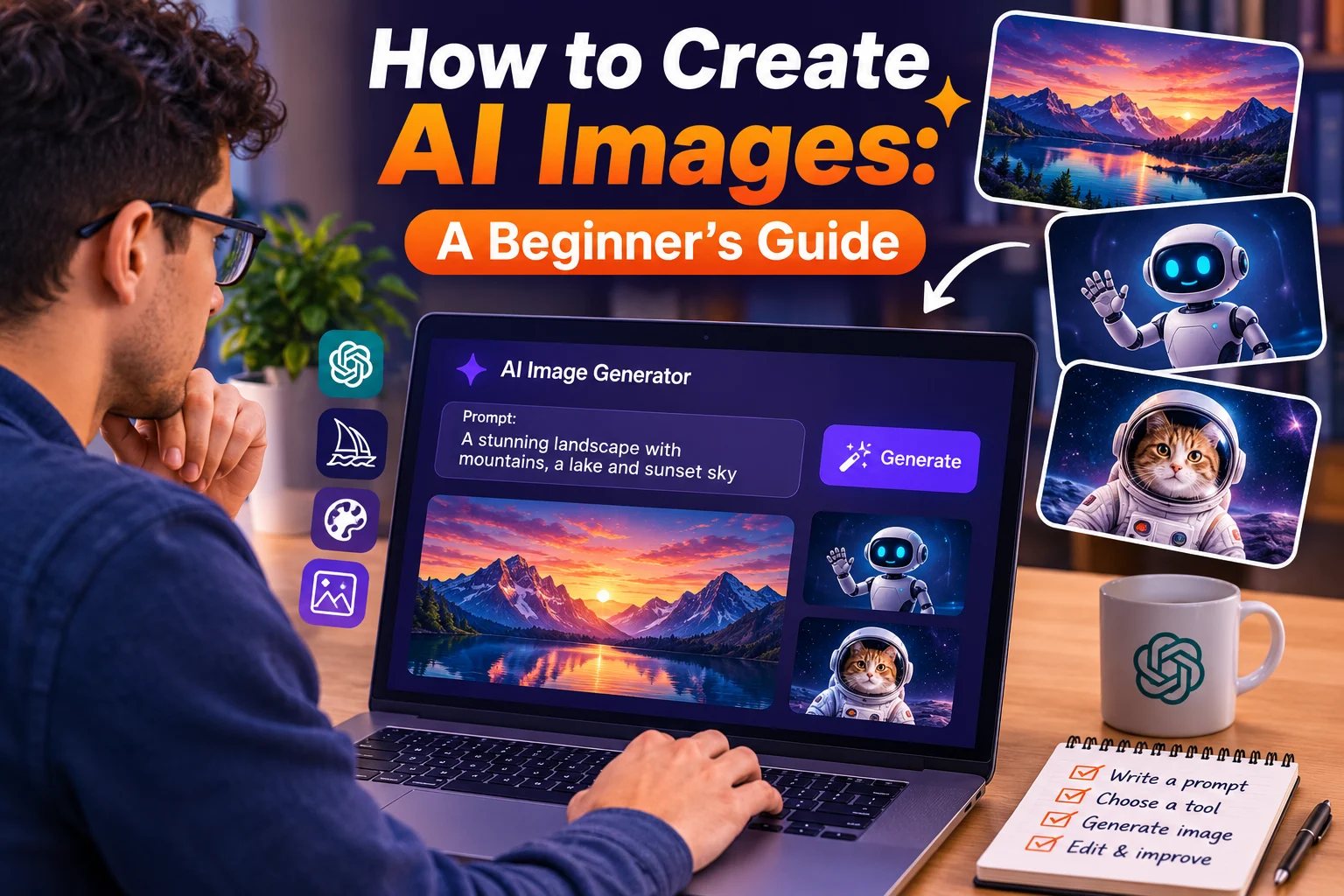

Creating images with artificial intelligence has become easier than ever. You no longer need advanced graphic design skills or years of experience with professional software. With an AI image generator and a good prompt, you can create illustrations, realistic scenes, product images, social media graphics, concept art, and many other types of visuals in seconds.
In this beginner's guide, you'll learn how AI image generation works, how to choose an AI image generator, how to write effective prompts, and how to improve your results.
What Are AI-Generated Images?
AI-generated images are visuals created by artificial intelligence based on instructions provided by a user. These instructions are usually called prompts.
For example, you could type:
"A futuristic city at sunset, cinematic lighting, realistic architecture, people walking through the streets, highly detailed."
The AI system interprets the description and generates an image that matches the requested concept as closely as possible.
How Does AI Image Generation Work?
Modern AI image generators are trained on large collections of visual information. During training, the models learn relationships between images, objects, styles, colors, compositions, and language.
When you provide a prompt, the model uses what it has learned to generate a new image that corresponds to your description.
You don't need to understand the technical details to create images. The most important skill for beginners is learning how to describe the desired result clearly.
What Do You Need to Create AI Images?
You only need a few basic things:
- An AI image generation tool.
- A clear idea of what you want to create.
- A text prompt describing the image.
- A device with an internet connection.
Some AI image generators are free or offer free usage, while others require a paid subscription or use a credit system.
Step 1: Choose an AI Image Generator
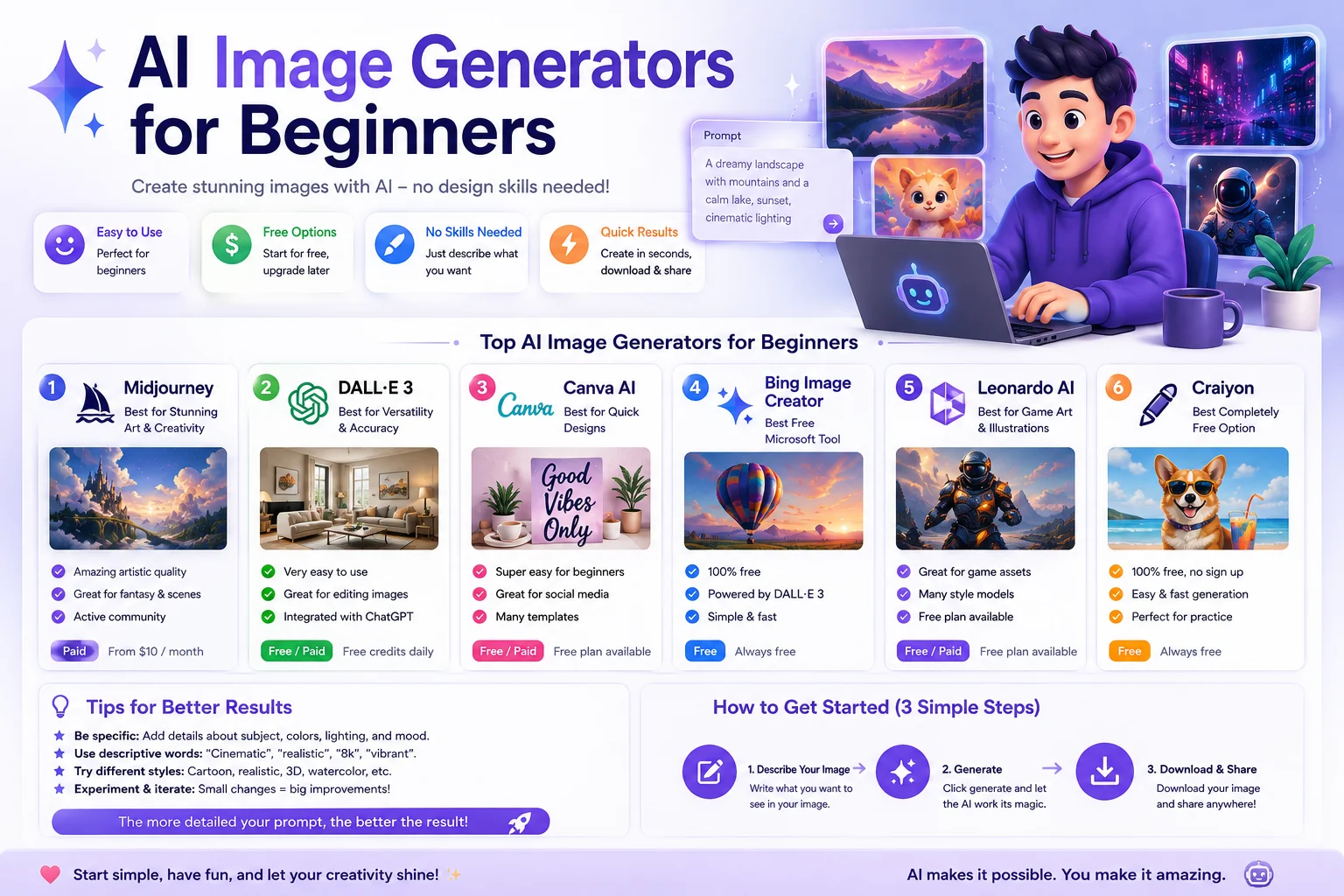
There are many AI image generation tools available, and each one has different strengths.
Depending on your needs, you might want a tool that focuses on photorealistic images, creative artwork, illustrations, marketing graphics, editing, or general-purpose image generation.
When choosing a tool, consider:
- Image quality
- Ease of use
- Available styles
- Editing capabilities
- Image resolution
- Generation speed
- Free usage limits
- Commercial usage rights
Step 2: Decide What You Want to Create
Before writing your prompt, decide exactly what kind of image you need.
You might want to create:
- A realistic photograph
- A blog hero image
- A social media graphic
- A product image
- A cartoon illustration
- A 3D illustration
- A fantasy scene
- A professional portrait
- A marketing visual
- A website background
Knowing the purpose of the image makes it easier to write an effective prompt.
Step 3: Write Your First AI Image Prompt
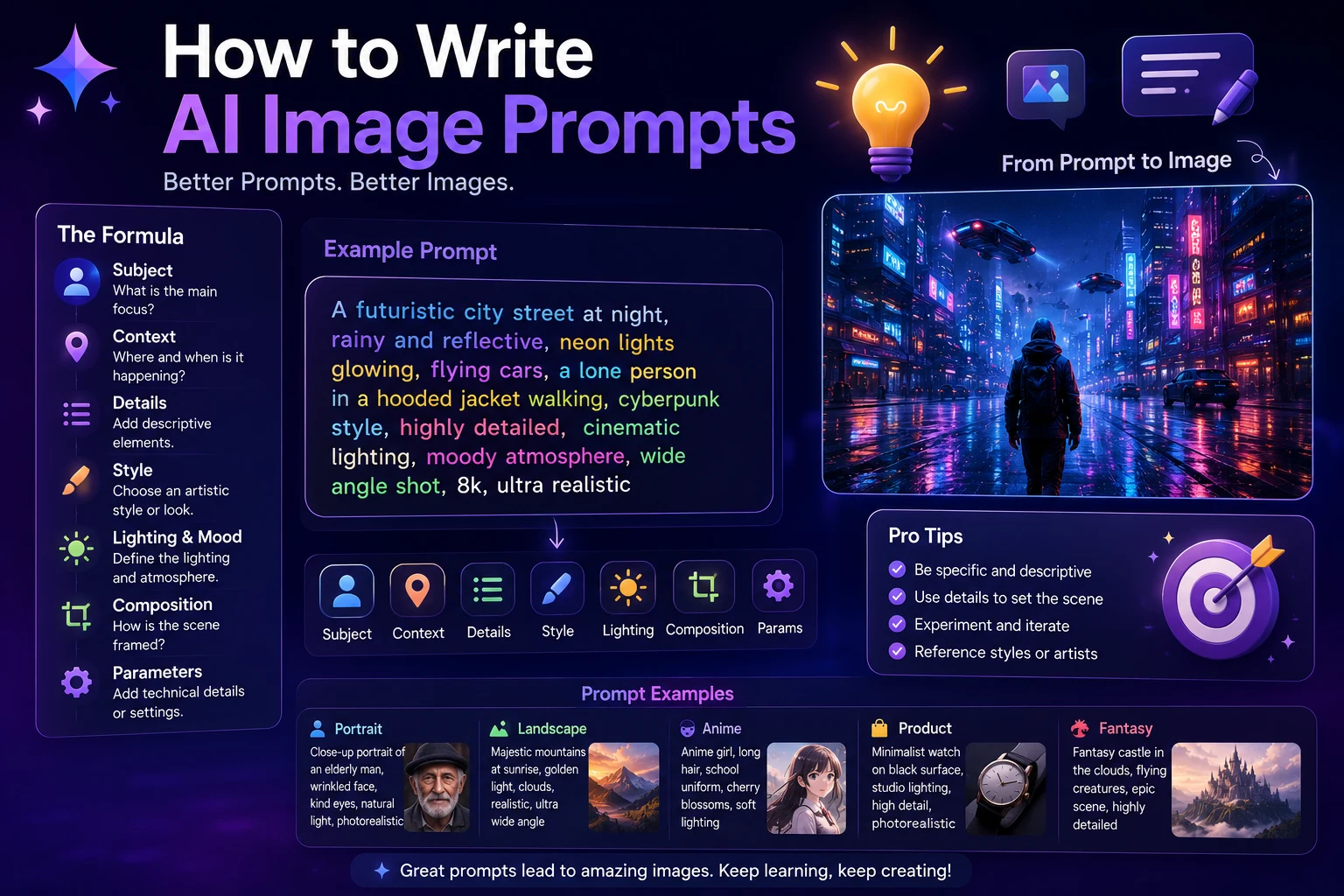
The prompt is one of the most important parts of AI image generation. A useful prompt describes the subject, environment, style, composition, lighting, and other details that matter.
A simple structure is:
Subject + Environment + Style + Composition + Lighting + Details
For example:
"A young professional working on a laptop in a modern office, realistic photography, clean composition, soft natural lighting, premium technology atmosphere."
This gives the AI much more information than simply asking for "a person using a laptop."
Step 4: Describe the Main Subject
Start by explaining what should appear in the image.
Be specific about important characteristics.
For example:
- "A modern electric car"
- "A young student studying at a desk"
- "A futuristic robot assistant"
- "A golden retriever running through a field"
If the subject is important, describe its appearance, position, clothing, expression, or other relevant details.
Step 5: Describe the Environment
Next, explain where the subject should be located.
For example:
- "Inside a modern technology laboratory"
- "On a beautiful tropical beach"
- "In a futuristic city at night"
- "Inside a minimalist home office"
The environment helps establish the overall context and atmosphere of your image.
Step 6: Choose an Image Style
You can tell the AI what visual style you want.
Some examples include:
- Photorealistic
- Cinematic
- Minimalist
- Editorial photography
- Digital illustration
- 3D render
- Watercolor
- Oil painting
- Anime-inspired
- Soft clay 3D
For a professional blog, for example, you might choose a clean editorial or modern 3D illustration style.
Step 7: Add Lighting Details
Lighting can dramatically change the appearance of an AI-generated image.
You can describe lighting using phrases such as:
- Soft natural lighting
- Warm sunset lighting
- Dramatic cinematic lighting
- Studio lighting
- Neon lighting
- Soft ambient lighting
If you want a clean professional image, soft lighting is often a useful starting point.
Step 8: Control the Composition
Composition tells the AI how the elements should be arranged in the image.
You can specify:
- Close-up portrait
- Wide-angle scene
- Centered composition
- Subject on the left side
- Subject on the right side
- Top-down view
- Low-angle shot
- Minimal background
If the image will be used for a website banner, you can also request empty space on one side for text.
Step 9: Specify the Image Size
Different platforms require different image dimensions.
For example:
- 1:1: Social media posts and square graphics
- 16:9: Blog headers, presentations, and videos
- 4:5: Portrait-oriented social media posts
- 9:16: TikTok, Instagram Reels, and mobile content
When the tool supports aspect-ratio controls, choose the format that matches where you plan to use the image.
Step 10: Generate the Image
Once your prompt is ready, enter it into your chosen AI image generator and generate the image.
Don't worry if the first result isn't perfect. AI image generation is usually an iterative process.
Look at the result and identify what needs to change. Then modify your prompt and generate another version.
How to Improve AI-Generated Images
If your first image doesn't look right, don't completely rewrite your prompt immediately. Instead, identify the specific problem.
For example:
- If the image is too dark, request brighter or softer lighting.
- If the composition is wrong, specify the subject's position.
- If the style is incorrect, describe the desired visual style more clearly.
- If the background is distracting, request a cleaner background.
- If the image looks unrealistic, request photorealistic details and natural lighting.
Small changes can produce significant differences.
Example of a Basic AI Image Prompt
"A modern laptop on a clean desk in a minimalist home office."
Example of a Better AI Image Prompt
"A premium modern laptop on a minimalist wooden desk inside a bright contemporary home office, soft natural morning light coming through a large window, clean editorial photography, realistic materials, subtle shadows, professional technology aesthetic, high detail, balanced composition."
The second prompt gives the image generator much more information about the desired result.
AI Image Prompt Formula for Beginners
You can use this formula whenever you don't know how to start:
Create a [type of image] showing [main subject] in [environment]. Use a [visual style] style with [lighting]. The composition should be [composition]. Include [important details] and make the overall image [mood or atmosphere].
For example:
"Create a professional blog hero image showing a young developer using an AI assistant on a laptop in a modern office. Use a premium 3D illustration style with soft purple and white lighting. The composition should be clean and modern, with subtle technology elements in the background and a futuristic but approachable atmosphere."
Common Mistakes Beginners Make
Using Extremely Vague Prompts
A prompt like "make an AI picture" gives the model very little information.
Instead, describe the subject, setting, style, and mood.
Adding Too Many Conflicting Instructions
Very long prompts aren't automatically better. If your instructions contradict each other, the result may become unpredictable.
Ignoring Composition
If you need space for a headline or website content, tell the AI where you want the main subject positioned.
Expecting the First Result to Be Perfect
Generating several variations and refining your prompt is a normal part of the process.
Ignoring Usage Rights
If you plan to use an AI-generated image commercially, check the specific tool's terms and licensing rules before publishing it.
Can You Create AI Images for Free?
Yes. Some AI image generators provide free image generation or limited free credits. However, free plans may have restrictions on the number of generations, resolution, speed, available features, or commercial usage.
Before using an image for a business or website, always check the current terms of the service you use.
Can AI Images Be Used on Websites?
AI-generated images can be used for many website purposes, including blog hero images, article illustrations, thumbnails, backgrounds, product concepts, and social media graphics.
For a website, optimize your images before uploading them. Use modern formats such as WebP when appropriate, resize images to the dimensions actually needed, and use descriptive alt text.
Tips for Creating Better AI Images
- Start with a clear concept.
- Describe the most important elements first.
- Specify the visual style.
- Include lighting and composition instructions.
- Use the correct aspect ratio.
- Generate multiple variations.
- Refine your prompt based on the result.
- Keep important instructions consistent.
- Check image licensing before commercial use.
- Optimize images before publishing them online.
Final Thoughts
Learning how to create AI images doesn't require advanced design skills. The most important thing is learning how to communicate your visual idea clearly through a prompt.
Start with a simple description, add details about the subject and environment, choose a style, control the lighting and composition, and then refine the result through multiple generations.
With practice, you'll quickly become better at creating AI images that match your ideas and work well for websites, social media, presentations, marketing, and creative projects.
Frequently Asked Questions
What is the easiest way to create an AI image?
The easiest method is to use an AI image generator that accepts text prompts. Describe what you want to see, choose the available image settings, and generate the image.
Do I need design skills to create AI images?
No. Beginners can create useful AI images without professional design experience. Learning how to write clear prompts is more important than knowing complex design software.
What should I include in an AI image prompt?
Start with the subject, environment, style, lighting, composition, and important visual details. You can also specify the aspect ratio or intended use.
Why don't my AI images look realistic?
Try describing the desired photography style, lighting, materials, camera perspective, environment, and realistic details more specifically.
Can I use AI-generated images commercially?
It depends on the AI image generator and the plan or service you use. Always review the current terms and licensing conditions before using generated images commercially.