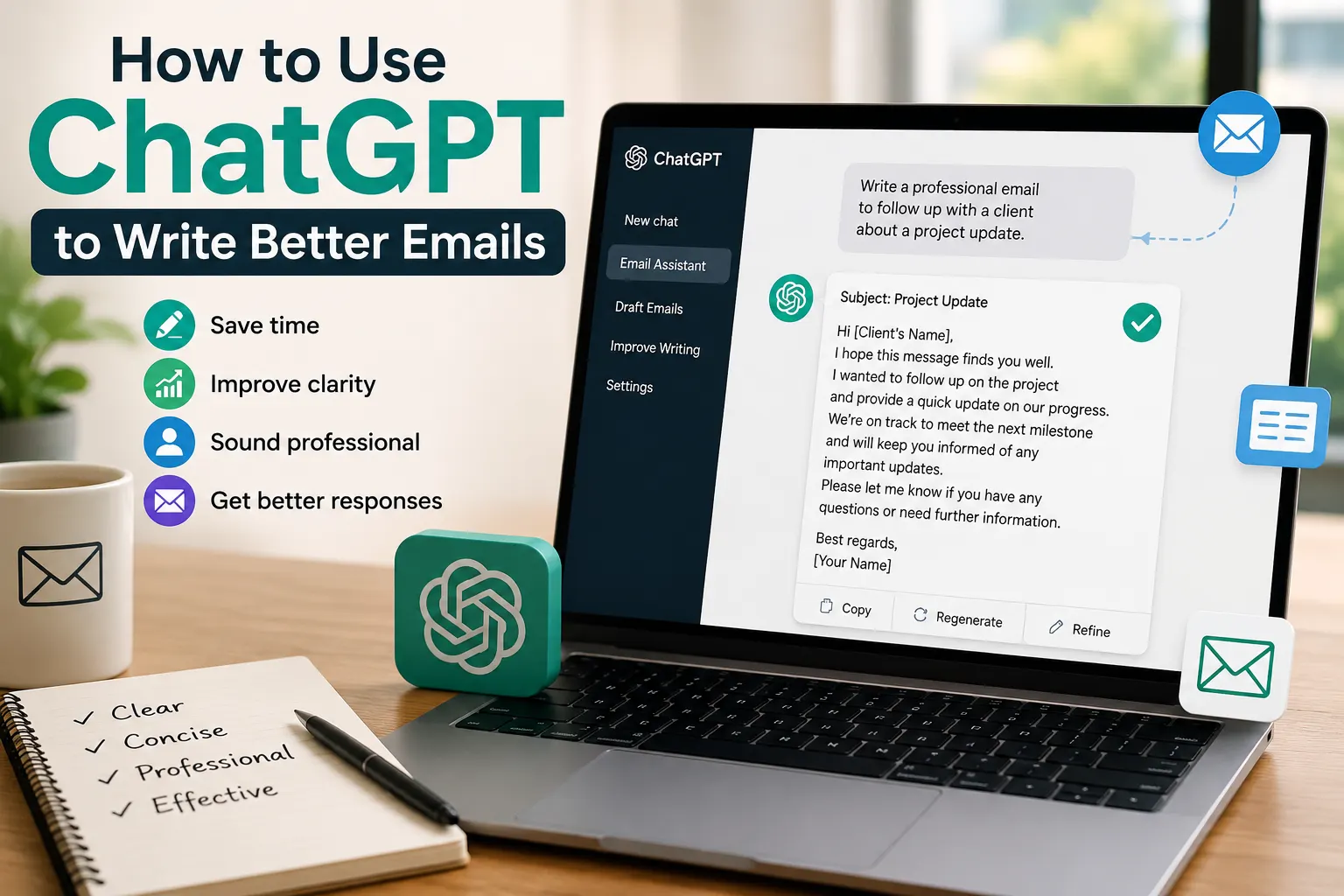

Writing a good email can take more time than expected. You need to choose the right words, organize your thoughts, use the appropriate tone, and make sure your message is clear and professional.
ChatGPT can make this process much easier. Instead of starting every email from scratch, you can use ChatGPT to create a first draft, improve an existing message, adjust the tone, summarize information, or make your writing more concise.
In this guide, you'll learn how to use ChatGPT to write better emails, create effective prompts, and avoid common mistakes when using AI for email communication.
Why Use ChatGPT for Email Writing?
ChatGPT can help with many parts of the email-writing process. Whether you are writing to a colleague, customer, manager, client, teacher, or business partner, it can help you turn your ideas into a well-structured message.
ChatGPT can help you:
- Write emails from scratch.
- Improve an email you have already written.
- Make an email more professional.
- Make a message friendlier or more conversational.
- Shorten long emails.
- Correct grammar and spelling.
- Improve clarity and organization.
- Create subject line suggestions.
- Write follow-up emails.
- Adapt an email for a specific audience.
How to Use ChatGPT to Write an Email
The easiest way to use ChatGPT for email writing is to give it enough context about your situation and explain what you want the email to accomplish.
Step 1: Explain the Situation
Start by telling ChatGPT why you need to send the email.
For example:
I need to email my manager to ask for a meeting about an upcoming project.
This gives ChatGPT the basic context it needs.
Step 2: Explain Who You Are Writing To
Tell ChatGPT who will receive the email. The appropriate tone can be very different depending on whether you are writing to a manager, customer, friend, or colleague.
For example:
The recipient is my manager, so use a professional and respectful tone.
Step 3: Explain What You Want to Say
Give ChatGPT the main points you want to communicate. You do not need to write everything perfectly.
For example:
I want to explain that I have completed the first part of the project, ask about the next deadline, and request a short meeting.
Step 4: Specify the Tone
Tell ChatGPT how you want the email to sound.
- Professional
- Friendly
- Formal
- Casual
- Confident
- Polite
- Concise
- Warm and helpful
Step 5: Ask for the Email
Once you provide the context, simply ask ChatGPT to write the email.
A Simple ChatGPT Email Prompt
You can use this basic prompt as a starting point:
Write a professional email to my manager. I want to ask for a meeting to discuss an upcoming project. Keep the email concise, polite, and friendly. Include a clear subject line and a professional closing.
ChatGPT can then create a complete draft based on your instructions.
Give ChatGPT More Context for Better Results
One of the best ways to improve AI-generated emails is to provide more relevant context.
Instead of simply saying:
Write an email asking for a deadline extension.
Try something more specific:
Write a polite and professional email to my project manager asking for a three-day deadline extension. The project is almost complete, but I need additional time to test the final version. Avoid making excuses and keep the email under 150 words.
The second prompt gives ChatGPT information about the recipient, purpose, reason, desired tone, and length.
How to Make an Email More Professional
If you already have an email draft, you can ask ChatGPT to improve it instead of creating a completely new message.
For example:
Rewrite this email to sound more professional and confident while keeping the original meaning. Do not make it unnecessarily formal.
Then paste your email below the instruction.
This approach is especially useful when you know what you want to say but are not sure how to express it professionally.
How to Make an Email Shorter
Long emails can make it difficult for readers to identify the most important information.
You can ask ChatGPT to make your message more concise.
Make this email 40% shorter. Keep all important information, remove repetition, and make the main request easy to understand.
You can also specify a maximum length, such as 100 or 150 words.
How to Change the Tone of an Email
The same message can sound completely different depending on the tone. ChatGPT can rewrite your email for different situations.
Professional Tone
Rewrite this email in a professional and respectful tone.
Friendly Tone
Rewrite this email to sound friendly, natural, and approachable while remaining professional.
More Confident Tone
Rewrite this email to sound confident and direct without sounding aggressive.
More Diplomatic Tone
Rewrite this email to communicate the issue diplomatically and avoid sounding confrontational.
Useful ChatGPT Prompts for Emails
Here are several prompts you can adapt for common email situations.
Follow-Up Email
Write a polite follow-up email about my previous message. I have not received a response yet. Keep it short and professional without sounding impatient.
Thank-You Email
Write a short professional thank-you email to someone who helped me with an important project. Make it sincere and natural.
Meeting Request
Write a concise email asking a colleague for a 30-minute meeting to discuss a project. Suggest a few possible times and use a friendly professional tone.
Apology Email
Write a sincere and professional apology email for missing a deadline. Take responsibility without making unnecessary excuses.
Customer Support Email
Write a professional response to a customer who is unhappy with a delayed order. Acknowledge their frustration, apologize, and explain the next steps clearly.
Ask ChatGPT to Create Subject Lines
A good subject line helps the recipient understand the purpose of your email before opening it.
You can ask ChatGPT for several options:
Give me 10 professional subject line options for this email. Keep them clear, specific, and concise.
You can then choose the subject line that best matches your message.
Ask ChatGPT to Improve Grammar
If English is not your first language, ChatGPT can also help you correct grammar, spelling, punctuation, and awkward expressions.
Try this prompt:
Correct the grammar and spelling in this email. Keep my original writing style and meaning. Do not make it unnecessarily formal.
This is often better than simply asking AI to completely rewrite the message because it preserves more of your original voice.
Ask ChatGPT to Improve Clarity
Sometimes an email is grammatically correct but still difficult to understand. ChatGPT can help organize your ideas and make your main point clearer.
Improve the clarity of this email. Make the main request obvious, remove unnecessary repetition, and organize the information logically.
Use ChatGPT Without Losing Your Personal Voice
One common mistake is allowing AI to make every email sound generic. Your emails should still sound like you.
You can tell ChatGPT to preserve your writing style:
Improve this email while preserving my natural writing style. Make only the changes necessary to improve clarity, grammar, and professionalism.
You can also provide an example of your preferred writing style and ask ChatGPT to follow it.
Review AI-Generated Emails Before Sending
ChatGPT can produce a useful draft, but you should always review the final email before sending it.
Check the following:
- Names and job titles
- Dates and times
- Numbers and prices
- Links and attachments
- Important facts
- Tone and wording
- The main request
AI can make mistakes, misunderstand context, or introduce information that you did not intend to include.
Be Careful With Confidential Information
Avoid copying confidential business information, passwords, private customer data, financial information, or other sensitive material into an AI tool unless you understand the service's privacy and data-handling policies.
When possible, remove unnecessary personal or confidential information before asking AI to improve an email.
ChatGPT Email Writing: Best Practices
- Give ChatGPT clear context.
- Specify the recipient and purpose.
- Describe the tone you want.
- Set a preferred length when necessary.
- Ask for a clear subject line.
- Keep your personal voice.
- Review every AI-generated email before sending it.
- Double-check facts, names, dates, and attachments.
- Never share unnecessary confidential information.
Frequently Asked Questions
Can ChatGPT write professional emails?
Yes. ChatGPT can create professional email drafts based on the context, audience, purpose, and tone you provide.
Can ChatGPT improve an email I already wrote?
Yes. You can paste your draft and ask ChatGPT to improve grammar, clarity, structure, tone, or conciseness while preserving your original meaning.
What should I tell ChatGPT when writing an email?
Include the purpose of the email, recipient, important points, desired tone, preferred length, and any specific information that must be included.
Can ChatGPT make an email sound less formal?
Yes. You can ask ChatGPT to make an email more casual, friendly, natural, or conversational while keeping it appropriate for the recipient.
Should I send an AI-generated email without checking it?
No. Always review an AI-generated email before sending it. Check the facts, names, dates, tone, and any other important details.
Final Thoughts
ChatGPT can be a powerful tool for writing better emails. It can help you create drafts faster, improve grammar, adjust tone, organize ideas, and communicate more clearly.
The key is to treat ChatGPT as a writing assistant rather than a replacement for your own judgment. Give it useful context, tell it exactly what you want, and always review the final result before pressing Send.
With the right prompts, ChatGPT can turn email writing from a time-consuming task into a much faster and easier part of your daily workflow.